
What is a Mac-Compatible Keyboard?
From cool and easy-to-use genuine Mac keyboards to more specialized keyboards, choosing a keyboard compatible with Mac is the best option when making a switch. This article explains what a Mac-compatible keyboard is, the differences from Windows keyboards, and how to choose one.
Modified at: 2025.7.17Posted at: 2024.10.9
What is a Mac-Compatible Keyboard?
PC keyboards are actually the same keyboard as long as they can be connected to the PC itself, and can be used with both Windows and Mac.
The products referred to as "Mac-compatible keyboards" in the market are called so for the following two points:
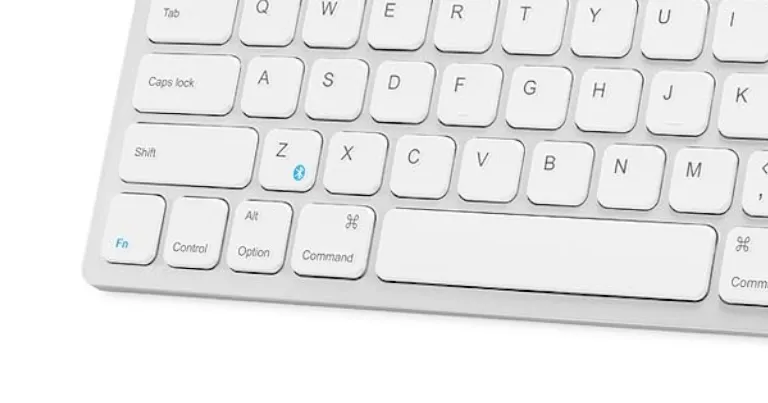
- "Command" key instead of Windows key
- Key layout similar to genuine Mac keyboards
In other words, the only difference is the key layout.
What is the Difference from Windows Keyboards?
As explained earlier, the difference between Windows keyboards and Mac-compatible keyboards is the key layout.
Because some special keys differ between Mac and Windows, layouts and shortcuts are different as well.
For example, Windows basic shortcuts are set up using combinations with the "ctrl key," while on Mac, combinations are generally with the "command key."
Moreover, on Mac, there is a separate ctrl key in addition to the command key, so when using a keyboard with macOS, it is necessary to have both "command key" and "ctrl key" on the keyboard.
Meanwhile, Windows keyboards, especially Japanese ones, have special keys such as "Half-width/Full-width" and "Muhenkan." Thus, the key layout subtly differs from the genuine Mac keyboard.
However, when a general Windows keyboard is connected to macOS, in most cases the Windows key will be assigned to the command key, so it is not completely unusable.
How to Choose a Mac-Compatible Keyboard
Match the Layout to Your Regular Genuine Mac Keyboard
Even among Mac keyboards, key layouts may differ slightly depending on the type or generation. For instance, on MacBook, the positions of the control key and caps lock key may be swapped depending on the generation, and the position of the fn key may be slightly different. Also, key prints may be in English or icons.
When choosing a Mac-compatible keyboard, matching it to the genuine Mac keyboard you have been using will make for a smooth transition. Especially if you often use the control key, be sure to check for any differences from your current keyboard.
Check if Special Features Support macOS
Recently, keyboard manufacturers like Razer have incorporated features into the keyboard itself, such as customizing actuation points or macro operations, making keyboards highly functional.
However, most of these functions require dedicated apps. Naturally, if there’s no app for macOS, those features cannot be used.
So if your Mac-compatible keyboard has special functions, always check if it "can be used on macOS."
Avoid Keyboards for iPad
Since iPad OS began supporting keyboards and mice, many third-party keyboards for iPad have been released, but special caution is required when using them as keyboards for Mac.
This is because some keys found on Mac keyboards may be missing on iPad keyboards. A common example is excluding the "fn" key or "esc" key.
If you absolutely never use these keys, it is fine, but some apps require them, so it is best to avoid choosing an iPad keyboard as a Mac keyboard.