
Improve Work Efficiency by Mastering Special Keys
Special keys are standard on keyboards but are often surprisingly underused. We have summarized how special keys work and in what situations using them can improve work efficiency.
Modified at: 2025.7.17Posted at: 2022.9.6
Table Of Contents
Keys Related to Page Navigation
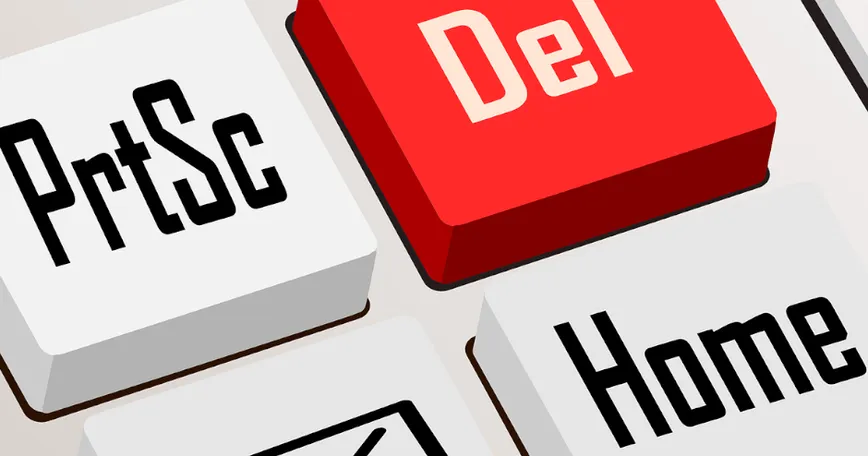
Page navigation keys are laid out on full-size keyboards (on compact sizes, they are combination keys with Fn).
The page navigation keys include:
- Home (move to the beginning of the screen)
- End (move to the end of the screen)
- PgUp (scroll up)
- PgDn (scroll down)
Many people surprisingly don't use these keys, but Home and End, for example, are useful when browsing web pages.
For instance, if you want to quickly click the global menu at the top of the page, you can jump there instantly with the Home key, or if you want to click a pager at the end of the page, you can use the End key to jump there.
You might think, "Why not just use the arrow keys for page movement?" However, being able to move instantly and reducing the number of keystrokes improves work efficiency over the long term.
Delete Keys
When entering text on the keyboard, some people may delete text with the Backspace key and others with the Delete key. However, these two keys have different functions.
The Backspace key deletes the character before the cursor, while the Delete key deletes the character after the cursor. Therefore, by using Backspace and Delete according to where you want to delete text, you can delete precisely without unnecessary cursor movement.
You may think, "Isn't it fine to delete with either key?" but if you always use just one, you'll always have to move the cursor with the arrow keys, increasing the number of keystrokes.
Print Screen (PrtSc) Key
Among people using a full-size keyboard, many make good use of the Print Screen key. As its name implies, it takes a screenshot, and being able to take a screenshot instantly is very convenient.
Some may argue, "Can't you just use the mouse to do a print screen?"—and that's a fair point—but considering the hassle of launching an app to capture a screenshot, knowing how to use the Print Screen key is definitely useful.
Note that on macOS, the PrtSc key does not exist at the OS level, so it cannot be used without custom assignment via additional settings.