
Fortnite Key Bindings and Shortcuts
This article covers key bindings for the popular battle royale game 'Fortnite.' It summarizes the differences between gamepad controls and keyboard controls, as well as key points to remember when learning them.
Posted at: 2022.7.7
Default Key Bindings
Movement
Fortnite's movement key bindings are centered around the FPS basics: WASD and the spacebar.
| Action | Key | Gamepad Control |
|---|---|---|
| Move Right | D | Left stick right |
| Move Left | A | Left stick left |
| Move Forward | W | Left stick up |
| Move Backward | S | Left stick down |
| Crouch | Left Ctrl | Press right stick |
| Jump | Space | B button |
If you’re switching from a gamepad, the first thing to get used to is WASD. Mastering the use of Left Ctrl for crouching is also key.
Combat & Weapons
In Fortnite, combat and weapon controls are mainly handled by the mouse, while weapon switching and reloading are assigned to the keyboard.
| Action | Key | Gamepad Control |
|---|---|---|
| Pickaxe | 1 | X button |
| Weapon Slot 1 | 2 | Switch with X button, then L or R |
| Weapon Slot 2 | 3 | Switch with X button, then L or R |
| Weapon Slot 3 | 4 | Switch with X button, then L or R |
| Weapon Slot 4 | 5 | Switch with X button, then L or R |
| Weapon Slot 5 | 6 | Switch with X button, then L or R |
| Reload | R | Y button |
| Open doors, pick up items, open chests | E | Y button |
The most confusing part for those switching from a gamepad is likely weapon switching. On a gamepad, you cycle through weapons with the L and R buttons, but on the keyboard, you select the weapon directly with keys 1–6. Since these keys are a bit farther from the WASD position, beginners may need some time to get used to it.
Building
Building is a key element in Fortnite. By default, all building actions are assigned to the function key row (F1–F4), which is two rows away from WASD, making mis-presses more likely. It’s a good idea to reassign these shortcuts to keys that are easier to reach.
| Action | Key | Gamepad Control |
|---|---|---|
| Build: Wall | F1 | Switch with A button, then ZR |
| Build: Floor | F2 | Switch with A button, then ZR |
| Build: Stairs | F3 | Switch with A button, then ZL |
| Build: Roof | F4 | Switch with A button |
| Change Material/Trap | F5 | Left arrow |
Building with a keyboard requires more practice than with a gamepad, so it’s best to train before jumping into matches.
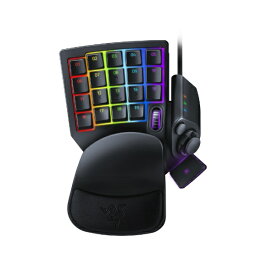
If you want to build even faster, consider using a left-hand device like the Razer Tartarus. It’s popular among regular gamers for its speed, but be aware that such devices may be banned in official tournaments.
Tips for Customizing Key Bindings
Assign Frequently Used Keys Near WASD
Since Fortnite is an FPS, the most used keys are WASD. Your left hand will always be near WASD, so it’s best to assign your most-used actions to keys nearby.
For example, the ZXCV keys are unused by default in Fortnite. You can also try using Tab, Shift, or Caps Lock.
Multi-Button Mouse is Also Effective
If you play with a mouse, assigning frequently used actions to a multi-button mouse is very effective.
For example, you can assign reload or commonly used building actions to your mouse, allowing you to perform these actions while moving.
Frequently Asked Questions About Fortnite Key Bindings and Shortcuts
Can you customize Fortnite key bindings and shortcuts to your liking?
In Fortnite, users can customize the key bindings and shortcuts for each action from the settings menu
You can change the assigned keys to match your keyboard or combine frequently used actions for faster performance than rival players—making this one of the key steps to leveling up your Fortnite skills.
If you’re not sure how to customize your bindings, it’s a good idea to reference layouts from well-known pro gamers or streamers.