
Fortnite Key Bindings and Shortcuts
This article covers key bindings for the popular battle royale game 'Fortnite.' It summarizes the differences between gamepad controls and keyboard controls, as well as key points to remember when learning them.
Posted at: 2022.7.7
Default Key Bindings
Movement
Fortnite's movement key bindings are centered around the FPS basics: WASD and the spacebar.
| Action | Shortcut |
|---|---|
| Move Right | D |
| Move Left | A |
| Move Forward | W |
| Move Backward | S |
| Crouch | Left Ctrl |
| Jump | Space |
If you’re switching from a gamepad, the first thing to get used to is WASD. Mastering the use of Left Ctrl for crouching is also key.
Combat & Weapons
In Fortnite, combat and weapon controls are mainly handled by the mouse, while weapon switching and reloading are assigned to the keyboard.
| Action | Shortcut |
|---|---|
| Pickaxe | 1 |
| Weapon Slot 1 | 2 |
| Weapon Slot 2 | 3 |
| Weapon Slot 3 | 4 |
| Weapon Slot 4 | 5 |
| Weapon Slot 5 | 6 |
| Reload | R |
| Open doors, pick up items, open chests | E |
The most confusing part for those switching from a gamepad is likely weapon switching. On a gamepad, you cycle through weapons with the L and R buttons, but on the keyboard, you select the weapon directly with keys 1–6. Since these keys are a bit farther from the WASD position, beginners may need some time to get used to it.
Building
Building is a key element in Fortnite. By default, all building actions are assigned to the function key row (F1–F4), which is two rows away from WASD, making mis-presses more likely. It’s a good idea to reassign these shortcuts to keys that are easier to reach.
| Action | Shortcut |
|---|---|
| Build: Wall | F1 |
| Build: Floor | F2 |
| Build: Stairs | F3 |
| Build: Roof | F4 |
| Change Material/Trap | F5 |
Building with a keyboard requires more practice than with a gamepad, so it’s best to train before jumping into matches.
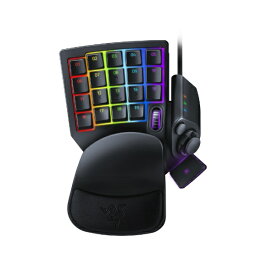
If you want to build even faster, consider using a left-hand device like the Razer Tartarus. It’s popular among regular gamers for its speed, but be aware that such devices may be banned in official tournaments.
Tips for Customizing Key Bindings
Assign Frequently Used Keys Near WASD
Since Fortnite is an FPS, the most used keys are WASD. Your left hand will always be near WASD, so it’s best to assign your most-used actions to keys nearby.
For example, the ZXCV keys are unused by default in Fortnite. You can also try using Tab, Shift, or Caps Lock.
Multi-Button Mouse is Also Effective
If you play with a mouse, assigning frequently used actions to a multi-button mouse is very effective.
For example, you can assign reload or commonly used building actions to your mouse, allowing you to perform these actions while moving.
Maintaining High FPS (Optimizing Your PC Setup)
To ensure your quick building and aiming inputs are flawlessly executed in Fortnite, maintaining high framerates (FPS) is just as crucial as your keyboard and mouse settings. No matter how perfectly you've optimized your keybinds, experiencing screen stutters during intense firefights will inevitably lead to frustrating input lag.
To find out if your current graphics card can reliably push 144Hz or 240Hz, check out the Fortnite FPS benchmarks on bld4me to help you find the optimal graphics settings for your specific rig.